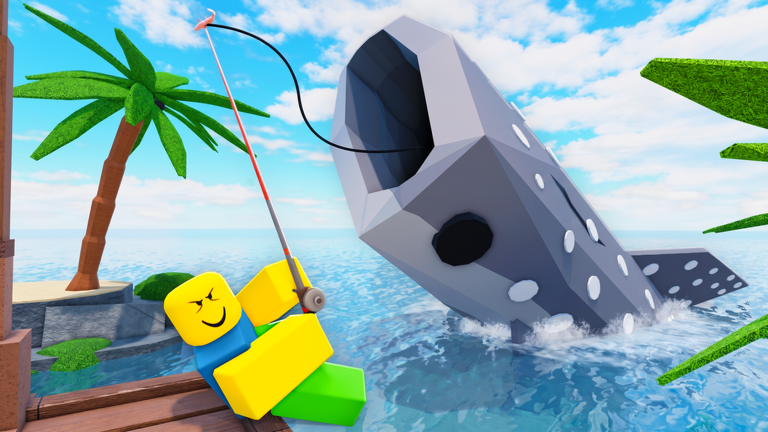
The controls you need at the water
Equip the rod before testing a cast. The game uses several buttons for different actions depending on whether you are fishing, swimming or fighting. Read the prompt that is visible at the time.
| Action | PC | Controller or touch |
|---|---|---|
| Select your rod | Use the hotbar keys 1–9. | Controller: LB or RB changes items. Touch: select the rod on screen. |
| Charge and cast | Hold left click, then release. | Controller: RT. Touch: use the on-screen casting prompt. |
| Reel or operate the dial | Left click at the fishing prompt. | Follow the live prompt. The developer’s public controller list explicitly labels RT for casting and attack. |
| Open the map | B | Controller: View. Touch: look for the map control. |
| Dive or surface | In water, Q dives and E surfaces. | Controller: B is listed for dive or roll. Touch: follow the movement prompts. |
Find the last thing that worked
Start your next attempt with the same rod and bait. Once you have identified the stage that failed, you can see what actually fixes it.
| What you see | What to try on the next attempt |
|---|---|
| Your cast never leaves your hand | Close any menu, check the equipped slot and try one deliberate cast. On a PC, watch for a charge response while holding left click, then release. |
| The line is out, but there is no reel prompt | Watch for an on-screen fishing prompt before using the fishing input again. On controller or touch, use the prompt that matches your device. |
| Reeling starts, then you lose the catch | Repeat at the same spot with the same setup. Watch the dial and change only your timing. Once you can reproduce the same failure, compare equipment or location separately. |
| The shop opens, but you cannot select a rod or bait | On console, try the shop cursor mode if it is available. BloxWaypoint reports it was added in a post-launch fix. Reopen the shop and follow the current prompt if your UI differs. |
Run two casts before you spend on another rod
On cast one, stop as soon as you have seen the first sign of trouble. Note the step as “no cast,” “line out,” “dial started,” or “shop selection blocked.” On cast two, reproduce the same conditions and change one input. Use the same spot and leave your bait and rod alone while testing timing.
If the game responds differently once you change the input, you have a practical fix you can repeat at the next island. If you still cannot reproduce the cast, check whether the server shows the same control help as the developer’s listing. Include your platform, the prompt text and the last successful step when reporting a problem.
Sources and checking method
Use the linked materials to confirm the latest in-game wording or event dates.
Developer’s PC, controller and mobile controls BloxWaypoint controls and patch notes
Secondary source for console shop cursor behavior
Last source check: November 23, 2026.